 ActivMan
Online Help v3.3
Browse the contents on the left, or jump straight to a topic. Looking for the latest version? See Online Help (Latest).
Creating a new server connection
- Select 'New' on the 'File' menu, and select 'Connection'
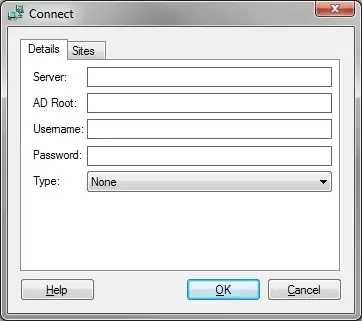
- Enter the name of the server (with no slashes)
- Enter the root where you would like to view from, e.g. 'dc=mydomain,dc=local'
- Enter a username and password to access this domain. It is advisable to enter the username in the format of "administrator@mydomain.local". You can enter the username using the full path but this has been known to cause authentication issues with Active Directory. For example, "cn=administrator,cn=users,dc=mydomain,dc=local".
- Select the connection type you wish to use when connecting to the domain.
- If you are running a single domain across multiple sites then you will need to specify which OU belongs to which site. Select the 'Sites' tab.
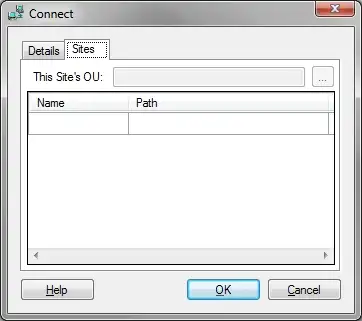
- Select the OU that belongs to "this" site by clicking the '...' button.
- Now enter a name and select an OU for each site within the domain. The OU entered needs to be the highest point of the tree for that site.
- Click 'OK' when finished
AD Root
The Active Directory Root MUST be the full qualified name, i.e. 'dc=mydomain,dc=local' or 'cn=Users,dc=mydomain,dc=local'.