ActivMan
Online Help v3.3
Browse the contents on the left, or jump straight to a topic. Looking for the latest version? See Online Help (Latest).
Creating a new user
There are three ways in which you can create a new user:
Creating a new user manually
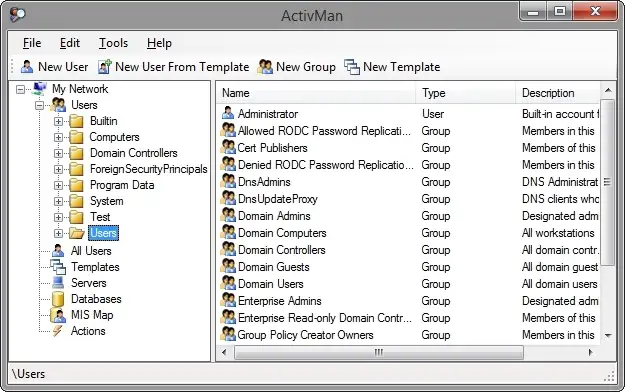
- Navigate to an Active Directory location where the new user will be
- Right-click anywhere in the list of users and select 'New User'
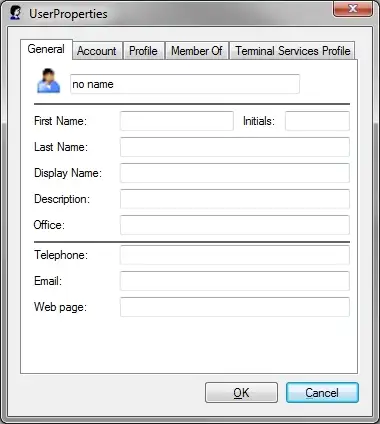
- Enter the details for the new user
- Click 'OK' when finished
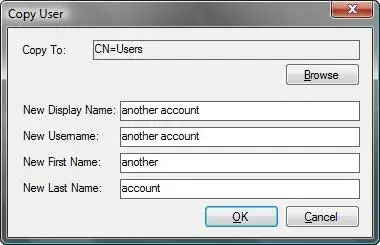
Creating a new user from another user
- Navigate to an Active Directory location where the existing user is
- Right-click the existing user and select 'Copy'
- In the 'Copy User' box enter the destination of the new user
- Enter a new display name
- Enter a new username
- Enter a new first name
- Enter a new last name
- You will then be asked if you would like to set the password of the new user. Select 'Yes' if you would like to.
Creating a new user from a template
- Navigate to an Active Directory location where the new user will be
- Click the 'New User from Template' button on the toolbar
- Select the template for the new user
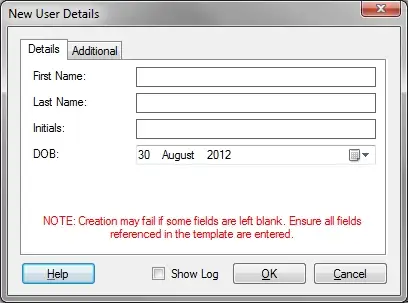
- Enter the user's first name
- Enter the user's last name
- Enter the user's initials
- Enter the user's DOB (for password). This can be left blank if not using DOB for their password.
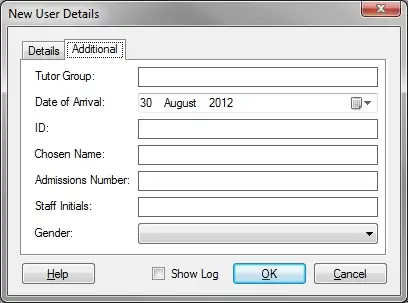
- Enter any other settings which may have been set in the template.
- Click 'OK' to create the user using the settings in the selected template.